Why Your PDF Is Too Large: Images, Fonts and Hidden Data Explained
Find out why PDF files become large. Understand the impact of high-resolution images, embedded fonts, scans and extra data before compressing.
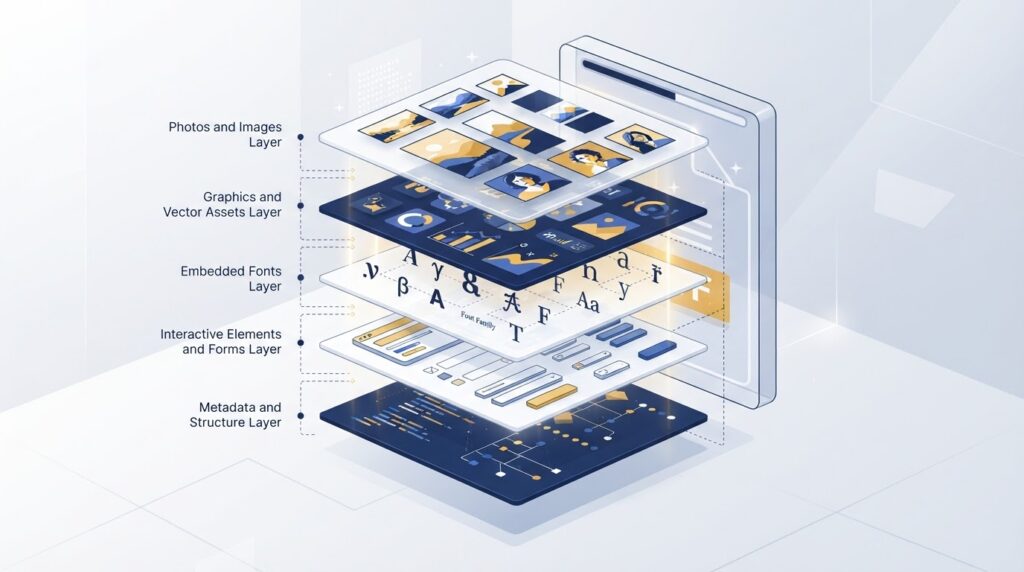
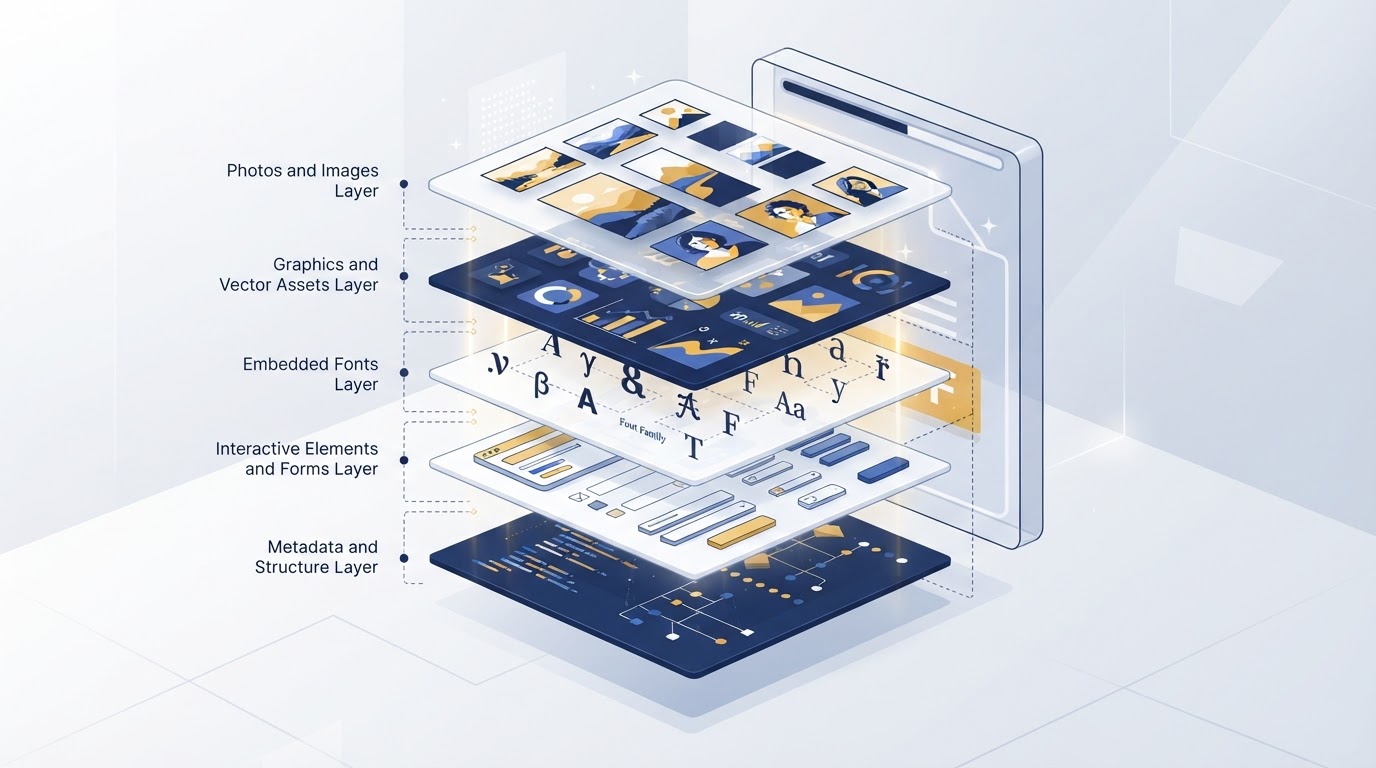
Two PDFs with a similar number of pages can have very different file sizes. A text-based report may be compact, while a short brochure full of high-resolution photographs can be large. Understanding what is inside a PDF helps you choose a suitable way to reduce its size without damaging important content.
1. High-resolution images
Photographs and scanned pages are common reasons for large PDFs. A page image may contain millions of pixels, even when it is displayed at a much smaller size. If the document is intended for ordinary screen reading, very high image resolution may be unnecessary. However, reducing resolution too far can make small text and fine details difficult to read.
2. Scanned pages saved as images
A scanned document may store each page as a full-page image. A 100-page scan can therefore contain 100 large pictures. If the scan is only needed for reading, a sensible grayscale setting may reduce size. If colour stamps, diagrams or handwritten notes matter, keep the colour information that carries meaning.
3. Embedded fonts and resources
PDFs can include font data so that text appears consistently on different devices. Embedded fonts can add to file size, especially when many font families or large character sets are included. Other embedded resources, such as attachments, thumbnails and high-quality graphics, can also contribute.
4. Repeated or unnecessary content
Some documents include duplicate pages, unused objects, attachments or metadata that is not needed for sharing. Removing genuinely unnecessary content may help, but never delete information required for legal, archival or business reasons.
How to diagnose a large PDF
- Check the page count and file size.
- Look for image-heavy pages, especially photographs and scans.
- Check whether the document contains embedded attachments.
- Compare the file with an earlier version to see what changed.
- Decide whether the document is for screen viewing, printing or archival use.
Choose compression carefully
Image downsampling and recompression can reduce file size, but may affect detail. Some tools rasterise pages, turning text and vector elements into images. That can remove text selection, search, accessibility structure and interactive features. Read the tool’s description before processing an important document.
Try the Mehena Tools PDF Compressor only after reviewing its current limitations. Compare the output with the original and do not assume that every compressed file will be smaller.
Why a compressed PDF can become larger
If a tool converts text pages into images, it may add image data that outweighs any savings. A document that already uses efficient compression may also have little room for improvement. Test a copy and compare actual file sizes rather than relying on a quality label alone.
Related reading
For a careful workflow, read how to reduce PDF file size without making documents unreadable. If the document contains pages you do not need, learn how to extract selected PDF pages.
Key takeaway
Find the source of the file size before choosing a fix. The best result is not simply the smallest PDF; it is a file that remains useful for its intended purpose.
Find simple browser-based utilities for everyday document and image tasks.
Explore all tools →