How to Split a PDF: Extract Pages or Divide a Large Document
Learn how to split a PDF by page range or extract selected pages. Follow a practical workflow and check the result before sharing.
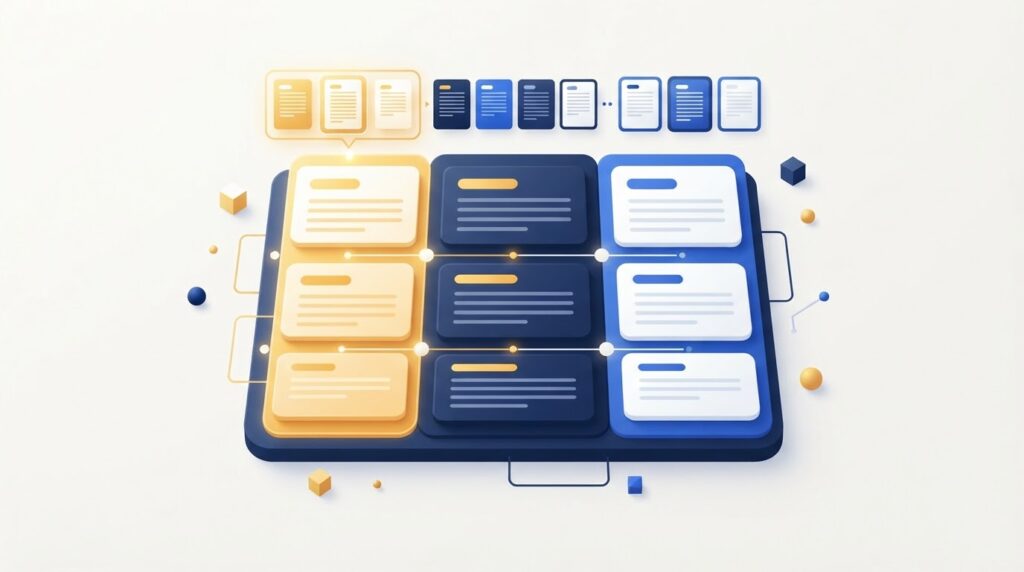
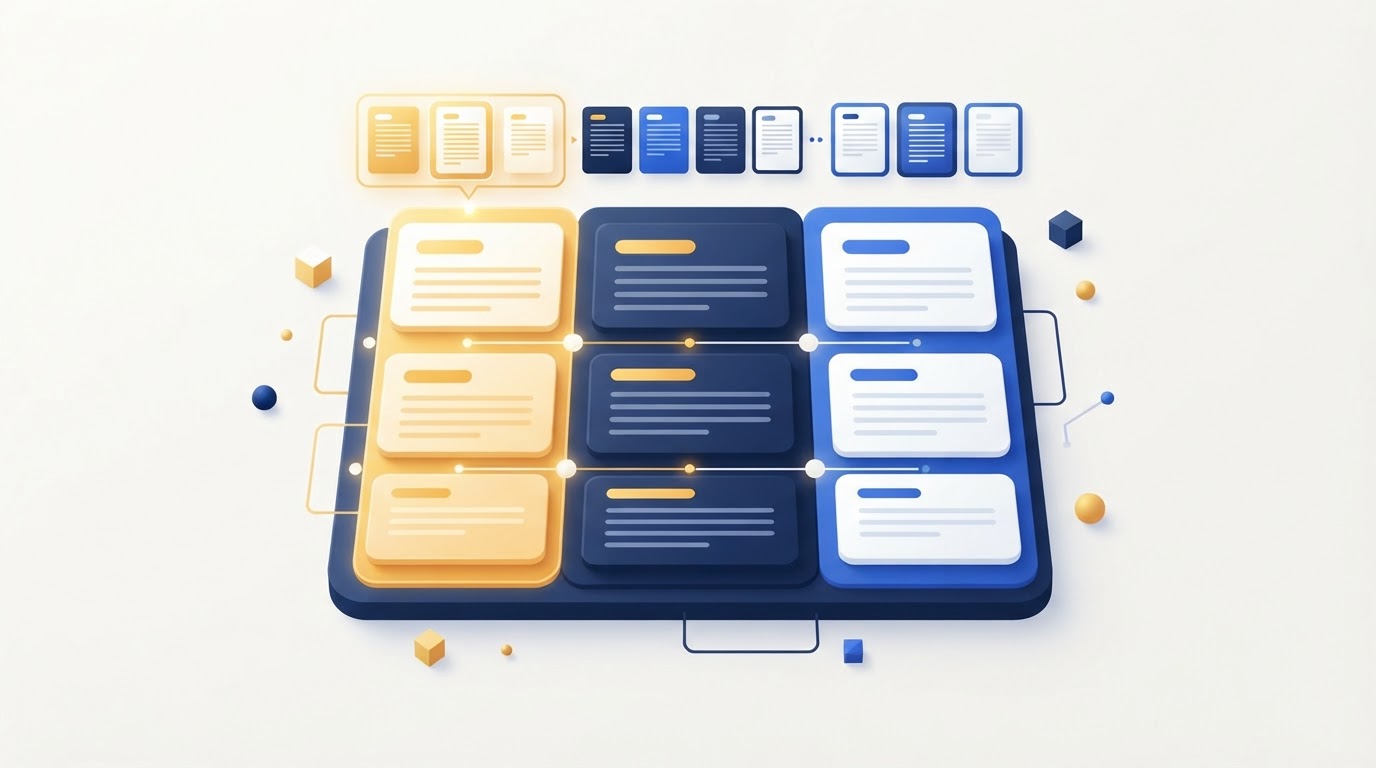
A long PDF is not always convenient to share. You may need to send only a signed page, extract a chapter for study, separate invoices or divide a large report into smaller files. Splitting a PDF creates a new document from selected pages while leaving the original file available for reference.
Two common ways to split a PDF
Extract selected pages: choose specific pages, such as pages 2, 5 and 8, and save them as a new PDF. This is useful when the pages you need are scattered throughout the document.
Split by page ranges: create separate files from continuous ranges, for example pages 1–5, 6–10 and 11–15. This approach works well for dividing a large manual or report into sections.
Step-by-step: extract pages from a PDF
- Open the Mehena Tools PDF Splitter.
- Select the PDF you are authorised to work with.
- Choose the required page range or selected pages.
- Review the page numbers carefully. Remember that the cover page counts as a page if it is part of the PDF.
- Start the extraction and wait for processing to finish.
- Download the new file and open it to confirm the pages are correct.
How to choose page ranges accurately
Read the page labels in the PDF viewer, not just the printed page numbers inside the document. A report may show printed page 1 on the third PDF page because it includes a cover and contents page. When accuracy matters, use the PDF viewer’s page counter and inspect the first and last page of each extracted file.
What can go wrong?
- Off-by-one errors: selecting page 4 when you intended printed page 4 can produce the wrong result. Check the viewer’s page count.
- Missing attachments: appendices or signature pages may be located at the end of the file.
- Unexpected blank pages: scanned documents sometimes contain blank backs of sheets. Decide whether they should remain.
- Large output: extracting pages does not necessarily reduce size if the selected pages contain high-resolution scans.
Preserve the original document
Save extracted pages with descriptive names, such as Invoice-March-Pages-1-2.pdf or Report-Appendix-A.pdf. Keep the original file until you have verified the new documents. If the source includes bookmarks, form fields, digital signatures or interactive links, check whether those features remain usable after splitting.
Privacy and safe sharing
Before sending an extracted PDF, make sure it does not include confidential pages or hidden information that should not be shared. A page extraction is not the same as securely redacting information. If sensitive text must be removed, use a proper redaction process and verify that the information cannot be selected or recovered.
Frequently asked questions
Can I extract one page from a PDF?
Yes. Choose the page number and create a new PDF containing that page, then open the output to verify it.
Does splitting a PDF delete the original?
A normal extraction workflow creates a separate output. Keep your original copy until the new file has been checked.
Can I split a password-protected PDF?
You may need the document password and permission from its owner. Do not attempt to bypass access restrictions.
Related reading
To combine extracted sections later, see how to merge PDF files in the correct order. For file-size issues, read our PDF compression guide.
Final checklist
Confirm the page range, check the first and last extracted pages, open every output file and review sensitive information before sharing. Careful verification is the easiest way to avoid sending an incomplete document.
Find simple browser-based utilities for everyday document and image tasks.
Explore all tools →