How to Fill Out a PDF Form: A Practical Checklist
Learn how to complete PDF forms neatly, check required fields, save a copy and avoid common form-filling mistakes.
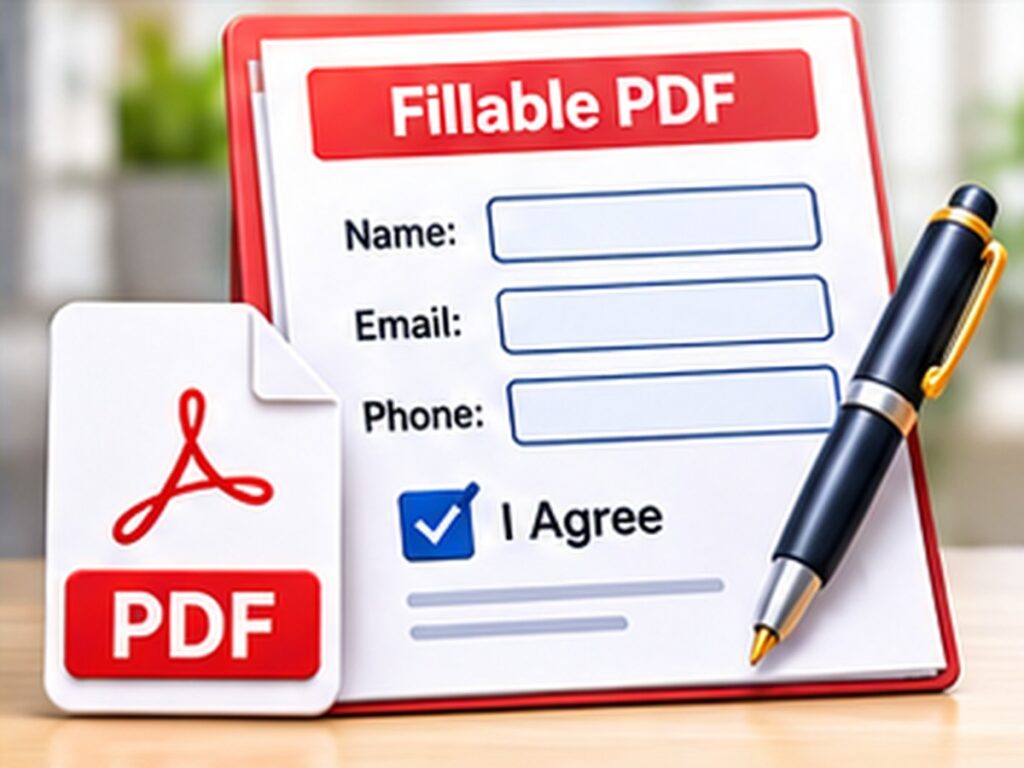
PDF forms are commonly used for applications, registrations, declarations and business paperwork. Filling one out carefully helps prevent missing information and delays. This guide explains a reliable workflow for completing a PDF form.
Before you start
- Download the form from the organisation’s official website.
- Check that you have the latest version and that every page is present.
- Read the instructions before entering information.
- Keep supporting details and documents ready.
Complete the fields carefully
Use a PDF editor that supports form fields. Click each field and enter the requested information. Follow the format shown for dates, phone numbers and identification references. Do not guess at unclear questions; confirm them with the organisation issuing the form.
Review before saving
- Check spelling of names and addresses.
- Verify dates, numbers and selected options.
- Make sure mandatory fields are complete.
- Review every page, including declarations and signature areas.
- Save a copy with a clear filename.
When a form is not fillable
Some PDFs are flat scans rather than interactive forms. You may need a PDF editor with text annotation or OCR support. Keep the original unchanged and save your completed copy separately. If the form requires a legally accepted signature, follow the recipient’s instructions about electronic or handwritten signatures.
Frequently asked questions
Can I fill a PDF on a phone?
Yes, many PDF reader apps support form fields and annotations. Zoom in and review the saved file before sending it.
Why does typed text disappear?
The PDF may not contain interactive fields, or the app may not save annotations correctly. Try a different trusted editor and reopen the saved copy to verify it.
Never upload confidential forms to a service unless you understand how the service handles files and personal data.
Find simple browser-based utilities for everyday document and image tasks.
Explore all tools →