How to Choose the Right Page Size for a PDF: A4, Letter and More
Choose the right PDF page size for printing, forms and reports. Compare A4 and US Letter, margins, orientation and scaling considerations.
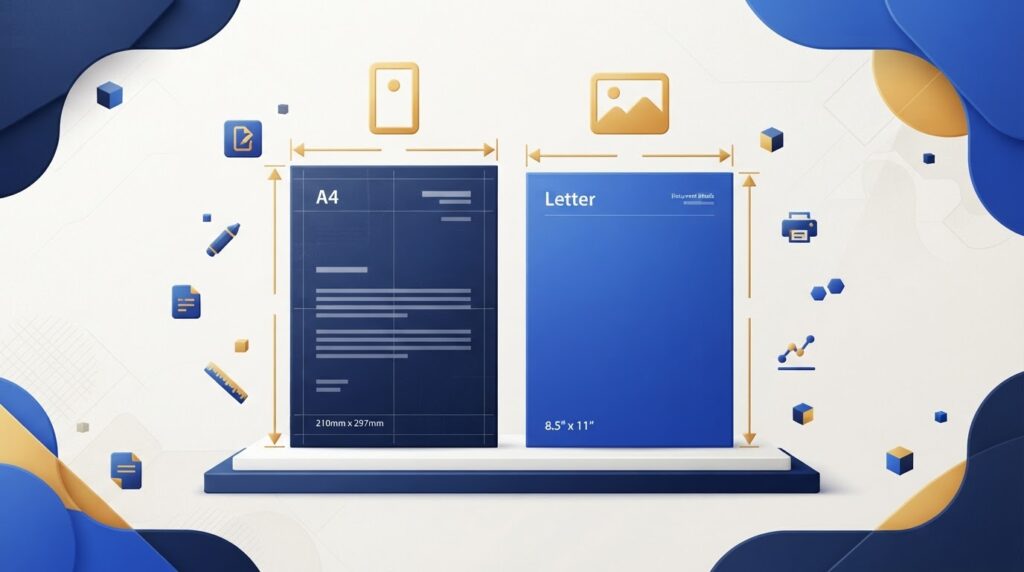
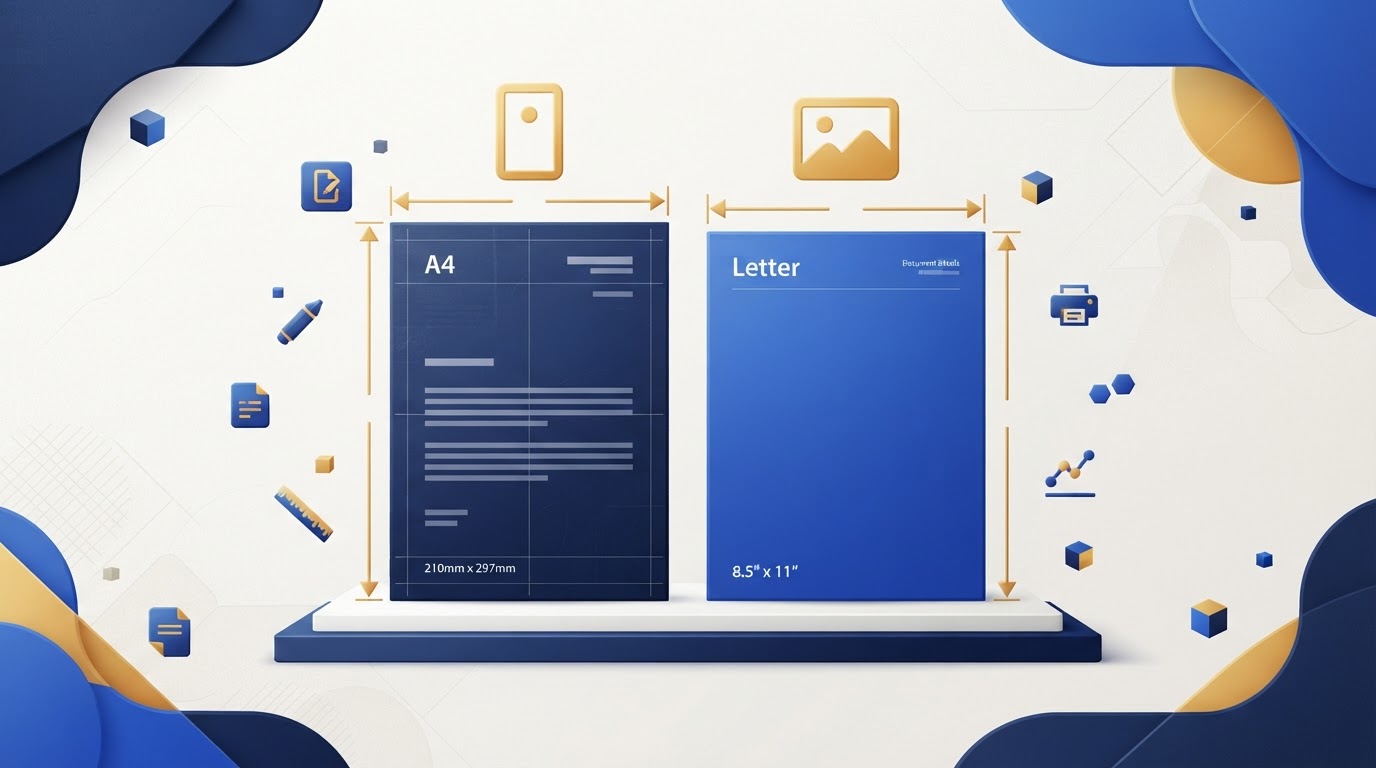
Page size affects how a PDF looks on screen and how it prints. A document designed for one paper size may be scaled or cropped when printed on another. Choosing the right size at the beginning helps avoid cut-off text, excessive margins and awkward page breaks.
A4 and US Letter: what is the difference?
A4 is 210 × 297 millimetres and is widely used in many countries, including much of Europe and Asia. US Letter is 8.5 × 11 inches and is common in the United States and Canada. They are similar in purpose but not identical in proportions. A document laid out for one may need adjustment to print neatly on the other.
Portrait or landscape?
Portrait orientation is suitable for letters, forms, essays and most reports. Landscape can be better for wide spreadsheets, charts, schedules and diagrams. Choose orientation based on the content rather than habit. A wide table squeezed into portrait pages may become difficult to read.
Think about margins and printable areas
Printers do not always print to the very edge of a sheet. Leave sufficient margins for the printer and for binding if the document will be assembled. Keep page numbers, signatures and essential notes away from the edges. If the PDF is intended for professional printing, follow the printer’s specific bleed and margin requirements.
Choose page size for the purpose
- Letters and forms: use the standard size expected by the recipient.
- Reports: use the paper size common to the organisation or region.
- Wide tables: consider landscape orientation or a larger page size.
- Photo collections: use a consistent page size or original-image sizing, depending on the intended result.
Check scaling before printing
Print dialogues may offer options such as Fit, Shrink oversized pages or Actual size. “Fit” can make content smaller so it fits the paper; “Actual size” may crop content if the page dimensions do not match. Preview the print layout and check whether small text remains readable.
Creating a PDF from images
When converting photos to a PDF, choose a page size and orientation before exporting. If the source images have different proportions, inspect each page to make sure the converter has not cropped important areas. You can use the Image to PDF tool and review the output before sharing.
Related reading
Read how to create a clean PDF from multiple photos and how to scan documents clearly with your phone.
Final checklist
Confirm the recipient’s paper size, select portrait or landscape, leave suitable margins, preview print scaling and inspect the final PDF. The right page size makes a document easier to read, print and share.
Find simple browser-based utilities for everyday document and image tasks.
Explore all tools →