How to Crop a Picture into a Circle and Create a Transparent PNG
Learn how to crop a photo into a perfect circle, create a transparent PNG avatar, position and zoom your image, and avoid common profile-picture mistakes.
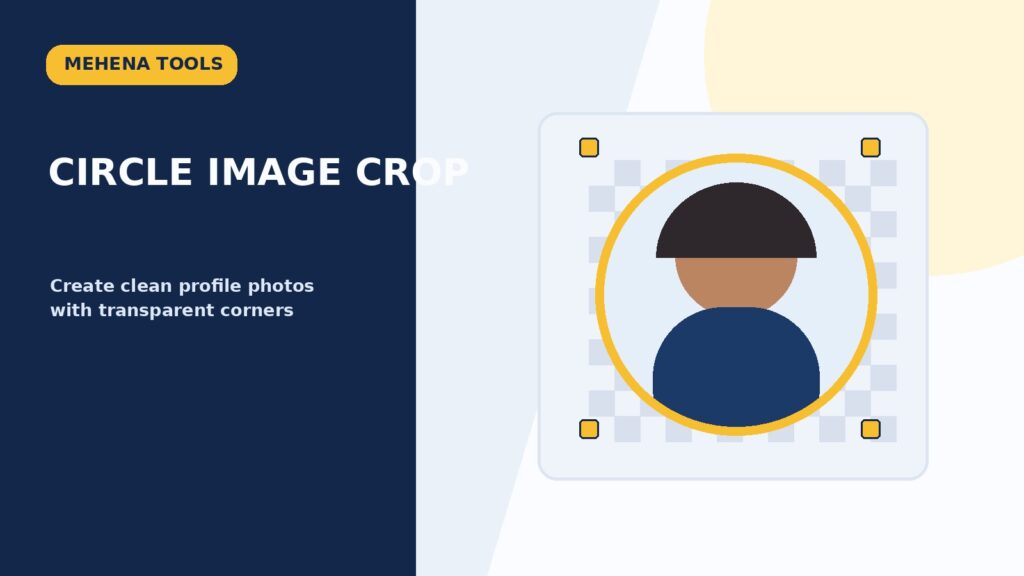
A circular profile picture is common across social networks, messaging apps, community platforms and website dashboards. A square photograph may look fine in a camera gallery, but a circular avatar focuses attention on the subject and fits the design of many modern interfaces. The challenge is to create a clean circle without stretching the face, cutting off important details or leaving unwanted white corners around the image.
This guide explains how circular image cropping works, how to position and zoom a photo, why PNG transparency matters, and how to prepare a profile picture that remains clear on different backgrounds. It is useful for personal avatars, creator profiles, team directories, small-business logos and online communities.
What is a circular image crop?
A circular crop displays only the part of an image inside a round boundary. The original photograph is usually rectangular or square, but the exported result can be a PNG with transparent pixels outside the circle. The transparent corners allow the circular image to sit naturally on a coloured website, presentation slide or profile card without showing a white square behind it.
It is important to distinguish a circular preview from a circular file. Some websites display any square image inside a circular frame, but the original file still has square corners. If you need a reusable circular graphic for a presentation or design, export an image with an actual transparent background rather than relying only on a platform’s display style.
Choose the right source photo
Begin with a clear photograph that has enough space around the subject. A face placed very close to the top edge may be difficult to fit into a circle without cutting off hair or the head. If the subject is small in the original image, zooming in too far can make the result look soft. A well-lit photo with clear focus gives the cropper more flexibility.
Check the background before cropping. A busy background can distract from the face, while a simple background makes the avatar easier to recognize at small sizes. If the photograph is intended for a professional profile, use an image that is appropriate for that setting and avoid filters that change the subject’s appearance too heavily.
How to crop an image into a circle online
Open the Mehena Tools Image Circle Cropper. Upload a JPG, PNG or WebP image supported by the tool. A circular preview appears, allowing you to position the photograph within the frame. Drag the image to bring the subject into the centre, then use the zoom control to adjust how much of the photograph fills the circle.
Keep the subject’s eyes and important features inside the safe area. Leave a little breathing room around the head instead of placing the crop boundary directly against the hair or chin. Preview the result before downloading. When the composition looks balanced, use the crop and download action to save the circular image as a transparent PNG.
Positioning: centre the subject without making the crop feel cramped
For a head-and-shoulders portrait, the face should usually be the main visual focus. Place the eyes slightly above the vertical centre rather than at the very top of the circle. Include enough of the shoulders to make the portrait feel natural, but do not leave so much empty space that the face becomes tiny when the avatar is displayed at 64 pixels.
For a logo or icon, centre the important symbol and keep a margin around its outer edges. A logo that touches the circular boundary may appear clipped after a platform adds its own border or shadow. Test the result at both large and small sizes because details that look clear on a desktop monitor may disappear in a small mobile avatar.
Understanding zoom and image proportions
Zoom changes how much of the original photo is visible inside the circle. Increasing zoom can make the face more prominent, but it also removes more of the surrounding area. Reducing zoom shows more of the photograph but may leave the subject too small. Move the image and adjust zoom together until the composition feels balanced.
Never stretch the image horizontally or vertically to force it into a circle. Stretching changes the proportions of faces, logos and objects. A good cropper should preserve the source aspect ratio and let you position or scale the image proportionally. If a source photo is very wide, you may need to zoom in more to fill the circle without empty areas.
Why transparent PNG is useful
PNG supports an alpha channel, which stores transparency information for each pixel. In a circular crop, pixels outside the circle can be transparent rather than white. This means the image can be placed over a dark, light or colourful background without a visible square box. Transparency is especially useful for avatars, badges, logos and profile graphics.
JPG does not support transparency. If a circular crop is saved as JPG, the corners must be filled with a solid colour such as white. That may look acceptable on a white page but will create obvious corners on a dark background. Use PNG when the transparent outside area is important. If file size matters and transparency is not required, a different format may be appropriate.
Where can you use a circular profile image?
Circular portraits are used in messaging profiles, social media accounts, online course platforms, team pages, discussion forums and author biographies. They are also useful in presentation slides and internal directories where a consistent visual style helps people scan a list of names. Before uploading, check the platform’s recommended dimensions and file-size limit.
Different platforms may crop or resize the uploaded image again. A platform may apply its own circle mask, border or compression. Keep a high-quality master PNG and upload a copy sized for the destination. If the platform expects a square image and automatically displays it as a circle, do not assume that uploading a pre-cropped transparent PNG will always improve the result; test the platform’s behaviour first.
Common circular cropping mistakes
Cutting off the top of the head
This usually happens when the subject is positioned too high or the zoom is too strong. Reduce the zoom slightly and move the image down. Check the circular boundary rather than the square preview, because the circle removes more from the corners than a square crop does.
Leaving too much empty space
A subject that appears small may become difficult to recognize on mobile. Increase zoom carefully and centre the face or logo. Do not zoom so far that the crop feels cramped or removes essential details.
White corners appear after download
Confirm that the output format is PNG and that transparency is preserved. Some image viewers display transparent pixels against a white preview background, which can make the image look square even though the transparency is present. Place the file over a coloured background to test it.
The image looks pixelated
Use a higher-resolution source photograph and avoid excessive zoom. Exporting a small image at a large pixel size does not restore missing detail. Keep the original file and use a clean source whenever possible.
How to check the transparent PNG
After downloading, open the PNG in an editor or place it on a coloured slide or webpage. Look around the outside of the circle for leftover pixels, rough edges or a visible rectangular background. Check that the face or logo remains centred and that no important feature has been clipped. If the destination platform resizes the image, test it at the final display size.
Keep the original photograph separately. A crop is a derivative file, and you may want to reposition or resize it later. Use clear filenames such as profile-avatar-transparent.png and store the original in a secure folder. Do not overwrite the only copy of a personal photograph during editing.
Privacy and responsible image use
Before uploading a photograph to an online editor, consider whether it contains personal or sensitive information. Review how the tool processes files and whether images are sent to a remote server or processed locally in the browser. Avoid using public computers for private photographs, and remove temporary copies from shared devices.
Use images you own or have permission to use. If you are creating an avatar for a team, school or organization, obtain the necessary consent before publishing identifiable portraits. A profile picture can reveal personal details, so choose the destination and visibility settings thoughtfully.
Accessibility and good profile design
A profile image should not be the only way to identify a person in a list. Provide a visible name or text label alongside the avatar. If the image conveys meaningful information, use descriptive alternative text when adding it to a website. If it is purely decorative and the name is already visible, the alt-text treatment may be different depending on the page structure.
Maintain sufficient contrast between the image and any border or background. A thin white border can disappear on a pale page, while a dark outline may help define the circular edge. Keep the style consistent across a team directory so that one image does not appear dramatically larger or more heavily edited than the others.
Quick circular image crop checklist
- Choose a clear, high-resolution source image.
- Keep the subject away from the edges before cropping.
- Preserve the original proportions; never stretch the photo.
- Position the face or logo carefully inside the circular safe area.
- Use PNG when you need transparent corners.
- Test the downloaded file on a coloured background.
- Check the final size on mobile and desktop.
- Keep an untouched copy of the original image.
Frequently asked questions
Can I make a circle crop from a JPG?
Yes. You can upload a JPG and export a PNG with transparent corners. The original JPG does not contain transparency, but the new PNG can.
Why does a transparent PNG look white in my viewer?
Some viewers show transparent pixels over a white canvas. Place the image on a coloured background to confirm whether the corners are transparent.
Will a circular crop reduce image quality?
The crop itself does not have to reduce quality, but the final resolution depends on the source image and export settings. Avoid enlarging a small source photo.
Can I use the circular image as a website logo?
You can, provided the logo remains readable at the displayed size and the circular shape suits the design. Keep a separate original logo file for other layouts.
Conclusion
A good circular profile picture depends on a suitable source photo, careful positioning, proportional zoom and a transparent export. Use PNG when you need the circle to sit naturally on different backgrounds, and always inspect the file after downloading. Try the Mehena Tools Image Circle Cropper to create a clean avatar, then keep your original image so you can make future versions without starting again.
Find simple browser-based utilities for everyday document and image tasks.
Explore all tools →