How to Spot Phishing Emails and Fake Websites Before You Click
Learn the warning signs of phishing emails, fake login pages and dangerous links, plus a simple checklist for checking messages safely.
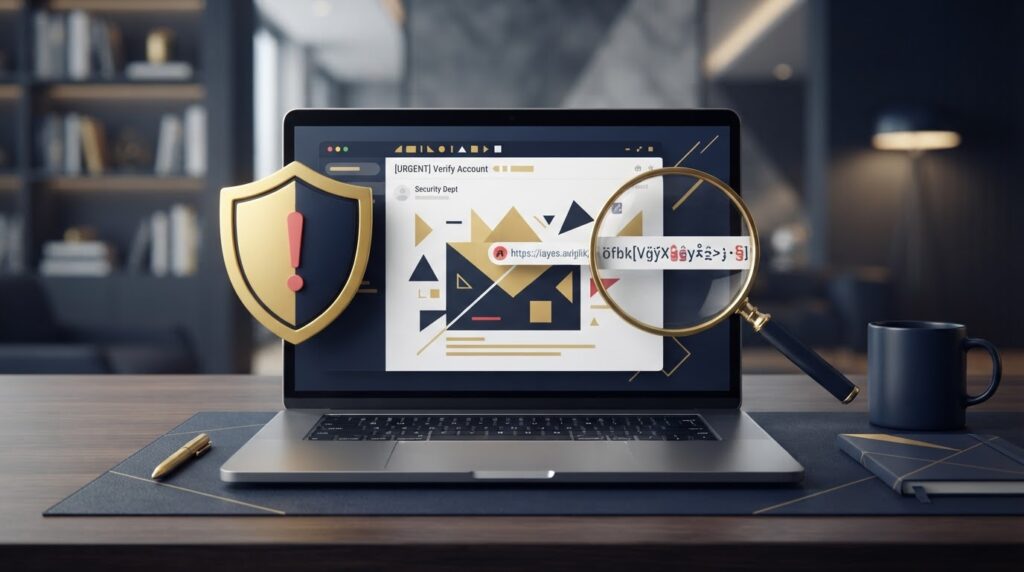
Phishing is a form of online deception in which an attacker pretends to be a trusted person, company or service to persuade someone to reveal information, open a harmful file or approve an action. The message may arrive by email, text, social media, a messaging app or even a phone call. It may look professional and refer to a real delivery, bank, subscription or account alert. The safest response is not to judge a message by its logo or tone, but to verify the request independently before acting.
Why phishing messages can look convincing
Scammers copy the colours, logos and writing styles of familiar brands. They may use publicly available details to personalize a message, such as your name, employer or a recent purchase. Some attacks begin with a genuine-looking conversation and only later introduce a suspicious link or payment request. Modern writing tools can also help attackers produce fluent messages with fewer spelling mistakes than older scam emails.
This means grammar alone is not a reliable test. A message can contain perfect English and still be fraudulent. Conversely, a genuine company message may contain awkward wording. Look at the sender, the destination of links, the requested action and whether the message matches something you actually did.
Common warning signs in an email
Unexpected urgency or threats
Messages that say your account will be closed in minutes, your parcel will be returned immediately or your payment will be blocked unless you act now are designed to reduce careful thinking. Real services may send deadlines, but an urgent tone should make you slow down and verify through the official app or website.
Requests for passwords or verification codes
Be suspicious of any message asking you to reply with a password, one-time code, recovery code or payment card details. Do not send credentials through email or chat. A verification code is intended for you to enter into a sign-in flow you initiated, not to read to another person.
Unexpected attachments
Invoices, delivery notices and shared documents are common themes in malicious attachments. Do not open files you were not expecting, especially executable files or documents that ask you to enable macros or install additional software. Confirm with the sender through a separate trusted channel if the file might be legitimate.
Unusual sender addresses
Read the complete address, not only the display name. A message may show the name of a bank while coming from an unrelated domain. Attackers also register lookalike domains that replace a character, add a word or use a different ending. A familiar logo does not prove that the sender is genuine.
How to inspect a link without opening it
On many desktop email clients, you can move the pointer over a link to preview its destination. On a phone, press and hold a link only if the app safely shows a preview without opening it; if you are unsure, do not interact with it. Compare the displayed domain with the official domain you already know. Be careful with shortened links because they hide the final destination.
Watch for misspellings, extra words, unexpected subdomains and misleading characters. In a web address, the registered domain is the important part. For example, a page hosted at secure.example.attacker-site.test is controlled by the owner of attacker-site.test, not by the organization whose name appears earlier in the address. When in doubt, close the message and type the official address yourself or use the official app.
Check the website before entering information
A padlock icon and HTTPS indicate that the connection between your browser and the site is encrypted. They do not prove that the website is honest. Scam websites can use HTTPS too. Check the full domain, look for unexpected spelling differences and consider whether you reached the page through a message you did not expect.
Do not trust a page simply because it looks identical to a familiar login screen. Fake pages can copy layouts and logos. If you need to sign in, open a new browser tab and navigate to the service using a bookmark or an address you have independently verified. Password managers and passkeys can also help because they are designed to associate credentials with the correct domain.
Common phishing scenarios
- Bank alert: a message claims that a transaction is suspicious and asks you to log in through a link. Open your bank’s official app or call the number printed on your card instead.
- Parcel delivery: a text says that a small fee is required to release a package. Check the tracking information on the courier’s official website using the tracking number you already have.
- Cloud document: an email says someone shared a file and asks you to sign in. Confirm that you expected the file and open the cloud service directly.
- Workplace request: a message from a manager asks you to buy gift cards or transfer money urgently. Verify the request using a known phone number or a separate company communication channel.
- Account verification: a social network message threatens suspension unless you enter a code. Do not share codes; check notifications inside the official app.
A safe verification routine
- Pause. Do not click, reply, download or pay while you feel pressured.
- Check whether you expected the message and whether the details match a real activity.
- Inspect the complete sender address and link domain, but remember that these can be spoofed or imitated.
- Open the service independently through its official app, a trusted bookmark or a manually entered address.
- Check account notifications and transaction history inside the official service.
- Contact the organization using a phone number or support channel from its official website, card or previous trusted paperwork.
- Report the suspicious message using your email provider’s phishing-report option, then delete it.
What to do if you clicked a suspicious link
Clicking a link does not always mean your device is compromised. If you only opened a page and did not enter information, download a file or approve a prompt, close the page and avoid interacting with it. Do not install anything the page suggests. Keep your browser and operating system updated and run a security scan if a file was downloaded or the device behaves unexpectedly.
If you entered a password, use a trusted device to visit the real service and change that password immediately. If you reused it elsewhere, change it on those services too. Sign out of other sessions, review recovery details and enable multi-factor authentication. If you entered payment details, contact your bank or card provider through the official number and ask what protective steps are appropriate.
If you shared a one-time code, treat the account as potentially compromised. Change the password, revoke unfamiliar sessions and contact the service’s official support. If you installed an app or remote-access tool at the request of a stranger, disconnect the device from the network if you suspect active misuse and seek trusted technical help before using it for sensitive accounts.
Protect family members and workplace accounts
Phishing prevention works best when everyone knows that verification is normal, not embarrassing. Agree with family members that urgent requests for money or codes must be confirmed through a separate channel. At work, use a clear process for changing bank details, approving invoices and buying gift cards. No single employee should feel forced to bypass normal checks because a message appears to come from a senior person.
Use unique passwords and a password manager, enable multi-factor authentication and keep devices updated. Limit administrator privileges to people who need them. Back up important files so that a successful attack does not automatically become permanent data loss. These controls do not eliminate phishing, but they reduce the damage a mistake can cause.
How to report phishing
Use the reporting feature in your email or messaging service. If the message impersonates a bank, payment service or delivery company, report it through the organization’s official security or fraud channel. In a workplace, forward it to the designated IT or security team according to internal policy. Avoid forwarding suspicious links to friends as a warning; share a screenshot or describe the sender without making the dangerous link clickable.
Reporting can help providers block similar messages and warn other users. Preserve relevant details if money was lost or an account was accessed, but do not keep interacting with the attacker. Contact your bank promptly if financial information may have been exposed.
Frequently asked questions
Can a phishing email contain my real name?
Yes. Names and other details may come from public profiles, mailing lists, previous breaches or legitimate business records. Personalization does not prove that a message is genuine.
Does HTTPS mean a website is safe?
No. HTTPS encrypts the connection, but it does not verify the honesty of the site owner. Always check the domain and the reason you are visiting the page.
Are spelling mistakes always a sign of phishing?
No. They can be a warning sign, but many fraudulent messages are professionally written. Verify the sender, link, request and context instead of relying on grammar.
What is the safest way to open a service login page?
Use the official app, a trusted bookmark or an address you type yourself. Avoid using login links from unexpected messages.
Final thoughts
Phishing succeeds when a message makes someone act before checking. Build a habit of pausing, verifying the request independently and refusing to share passwords or one-time codes. Use a password manager, multi-factor authentication and updated devices to reduce risk. If you make a mistake, act quickly: change exposed credentials, revoke suspicious sessions and contact the affected service or financial provider through a trusted channel.
Find simple browser-based utilities for everyday document and image tasks.
Explore all tools →