Two-Factor Authentication Explained: How to Protect Your Online Accounts
Understand two-factor authentication, compare SMS, authenticator apps and security keys, and build a practical account protection routine.
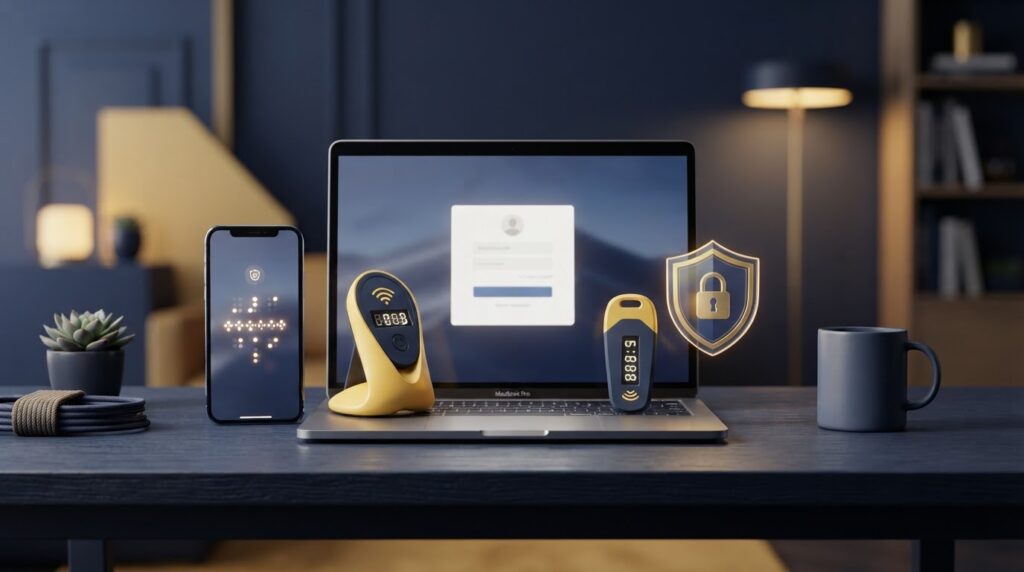
A strong password is important, but it is not always enough. Passwords can be stolen through phishing, exposed in data breaches, guessed when they are weak or reused across services. Two-factor authentication adds another step to sign-in, making it harder for someone to enter an account with a password alone. This guide explains how it works, which methods are available and how to set it up without locking yourself out.
What does two-factor authentication mean?
Authentication is the process of proving that you are the person allowed to access an account. A factor is a type of evidence used for that proof. The traditional categories are something you know, such as a password; something you have, such as a phone or security key; and something you are, such as a biometric characteristic.
Two-factor authentication, often shortened to 2FA, requires evidence from two different categories. A password plus a code from an authenticator app combines something you know with something you have. A password plus a security key does the same. Two passwords are not two factors because both are things you know. Some services use the broader term multi-factor authentication, or MFA, when more than one factor is required.
Why a second factor matters
If an attacker learns your password, a second factor can stop an immediate login. This is especially valuable for email, cloud storage, banking, social media, shopping accounts and administrator dashboards. A compromised email account can be used to reset passwords elsewhere, so protecting it helps protect many other services.
2FA is not a guarantee. Attackers may trick people into approving a login, steal active browser sessions or exploit weak account recovery. However, a well-chosen second factor raises the effort required to compromise an account and blocks many attacks that rely only on stolen passwords.
Common types of second factor
SMS text-message codes
Some services send a one-time code to your mobile number. This method is widely available and generally better than password-only access. However, text messages can be exposed through SIM-swap attacks, phone-number porting fraud, social engineering or weaknesses in mobile networks. SMS may be a reasonable starting point when stronger options are unavailable, but it is not usually the strongest choice.
Authenticator apps
An authenticator app generates short-lived codes on your device. Many use a standard time-based algorithm, so the code changes after a short interval. The code can work without a mobile signal once the account has been configured. Protect the phone with a screen lock, keep the app updated and understand whether its backup or transfer feature is enabled. When a service offers recovery codes, save them separately.
Push notifications
Some services send a sign-in approval request to a trusted app. You tap approve or deny. This is convenient, but never approve a request you did not start. Attackers sometimes send repeated prompts hoping that a tired user will accept one. Number matching, where you must enter a number displayed on the login screen, can reduce accidental approvals.
Physical security keys
A security key is a small hardware device that connects through USB, NFC or another supported method. It can provide strong phishing-resistant authentication when used with compatible services and protocols. Keep a backup key in a safe place if the service supports registering more than one. A key can be lost or damaged, so confirm recovery procedures before making it your only route into an account.
Passkeys and device biometrics
Passkeys use public-key cryptography and can provide phishing-resistant sign-in. They are not simply a fingerprint sent to a website. Your device uses a local unlock method, such as a PIN or biometric check, to authorize use of the private key. Depending on the service, a passkey may replace the password rather than act as an additional factor after it.
Which method should you choose?
Use the strongest practical option supported by the service. A passkey or FIDO-compatible security key is often a strong choice against phishing. An authenticator app is a useful option when passkeys or hardware keys are not available. SMS is preferable to no second factor in many situations, but consider moving to a stronger method if the account supports it.
Convenience matters too. If a method is so difficult that you routinely disable it, it will not protect you. Consider whether you travel, use multiple devices, share account administration with a team or have reliable access to your phone. For important accounts, register a backup method and test it before you need it.
How to enable 2FA safely
- Open the official website or app by typing its address yourself or using a trusted bookmark.
- Go to Account, Security, Sign-in or Privacy settings. The exact label differs by service.
- Choose the strongest supported method you can manage reliably.
- Follow the setup instructions and verify the method with a test sign-in.
- Generate recovery codes if the service provides them. Store them offline or in a separate secure vault.
- Review trusted devices, active sessions and recovery email or phone details.
- Repeat the process for your primary email, cloud storage, financial services and other high-value accounts.
Never share a one-time code with a caller, message sender or person claiming to be technical support. Legitimate support staff should not need you to disclose a sign-in code. A code is effectively a temporary key to your account.
Plan for a lost or replaced phone
Before changing phones, check how your authenticator app transfers accounts. Some apps synchronize encrypted data; others require you to move each account or scan a new setup code. Follow the official instructions while you still have access to the old device. Do not wipe or trade in the old phone until you have verified that you can sign in on the new one.
Recovery codes are important because they can provide an alternative when your normal second factor is unavailable. Treat each code like a password. Store it in a secure password vault or a protected offline location, not in a public cloud note or an unprotected photo gallery. If you use a physical key, register a second key where possible and keep it separate.
Recognize common 2FA attacks
Code phishing: a fake login page asks for your password and current code, then forwards both to the real service. Check the domain carefully and use passkeys or security keys where supported.
Push fatigue: repeated approval requests are sent until someone taps approve. Deny unexpected prompts, change your password if they continue and review account sessions.
SIM swapping: a criminal persuades a mobile provider to move your number to another SIM. Protect your mobile account with a strong account PIN where available and prefer app-based or hardware authentication for sensitive services.
Malicious support messages: a message may claim that your account is at risk and ask you to read out a code. Stop and contact the service through its official app or website instead.
What 2FA cannot protect against
Two-factor authentication does not make unsafe downloads harmless, stop every malware infection or prevent someone from using a device that is already unlocked. It may not protect a session cookie that has been stolen from a compromised computer. Keep your operating system and browser updated, install software from trusted sources, use a screen lock and avoid signing in on public or shared devices whenever possible.
Account recovery can also become the weak point. If an attacker can reset your account using an old email address or phone number, the second factor may be bypassed. Keep recovery details current and secure the recovery email account with strong authentication too.
A practical priority checklist
- Protect your main email account first.
- Enable a strong second factor on your password manager and cloud storage.
- Secure banking, payment and shopping accounts.
- Protect social accounts that can be used to impersonate you.
- Review administrator accounts for websites, domains and business tools.
- Save recovery codes and verify backup access.
- Remove old devices and revoke sessions you do not recognize.
Frequently asked questions
Is SMS 2FA useless?
No. SMS can still add protection compared with a password alone. It has known weaknesses, particularly around phone-number takeover, so stronger methods are preferable when available.
Can I use two authenticator apps?
Some services allow more than one authenticator or backup method, while others allow only one. Follow the service’s official setup process and make sure you can recover access.
Should I enable 2FA on every account?
Enable it wherever available, prioritizing accounts that contain sensitive information or can reset access to other services. Even less important accounts benefit from unique passwords.
Final thoughts
Two-factor authentication is one of the most useful security improvements an ordinary user can make. Choose a method that resists the attacks you are most likely to face, set up recovery before an emergency and never approve or share a code you did not request. A few minutes spent securing your most important accounts can prevent a much larger problem later.
Find simple browser-based utilities for everyday document and image tasks.
Explore all tools →