Image DPI and Pixels Explained for Printing
Learn the difference between pixels and DPI, estimate print dimensions and prepare images for clearer printed results.
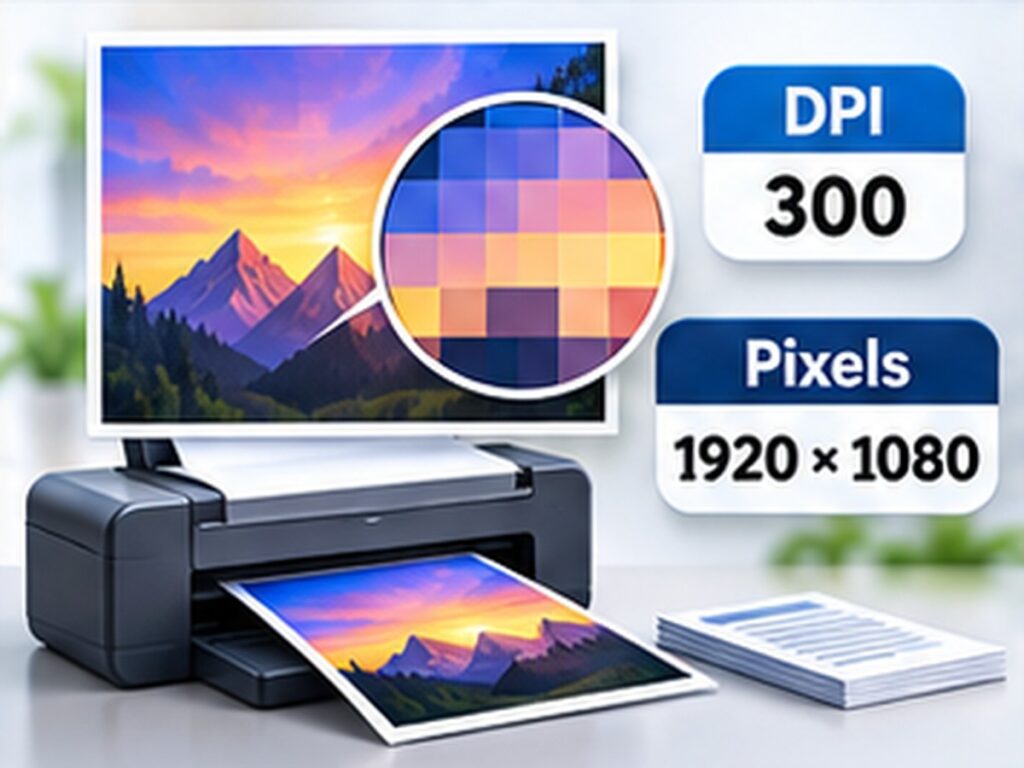
Images that look sharp on a phone can appear soft when printed large. Two concepts help explain why: pixel dimensions and print resolution, often expressed as DPI or PPI.
Pixels describe image dimensions
A digital image might be 3000 pixels wide and 2000 pixels high. Those dimensions describe how much image information is available. Enlarging an image beyond its available detail can make it look blurry or pixelated.
PPI and DPI are not identical
PPI means pixels per inch and describes how image pixels are mapped to physical print size. DPI means dots per inch and refers to printer dots. People often use DPI casually when discussing image resolution, but the concepts are different.
Estimate print size
To estimate the width in inches, divide the pixel width by the intended PPI. For example, a 2400-pixel-wide image at 300 PPI prints about 8 inches wide. The same image at 150 PPI prints about 16 inches wide, but may look less detailed at close viewing distance.
Prepare an image for printing
- Find the final physical print dimensions.
- Check the image’s pixel dimensions.
- Calculate the approximate PPI at that size.
- Avoid repeatedly saving lossy formats such as JPG.
- Ask the print provider about its preferred file format and colour requirements.
Frequently asked questions
Is 300 DPI always required?
No. It is a common target for many close-viewed prints, but posters and large displays may use lower resolution because they are viewed from farther away.
Can changing DPI metadata add detail?
No. Changing a resolution field without adding pixels changes the nominal print size, not the underlying image detail.
Find simple browser-based utilities for everyday document and image tasks.
Explore all tools →