What Is OCR? How Scanned PDFs Become Searchable
Understand OCR, how it recognises text in scanned documents, and how to check accuracy before relying on extracted text.
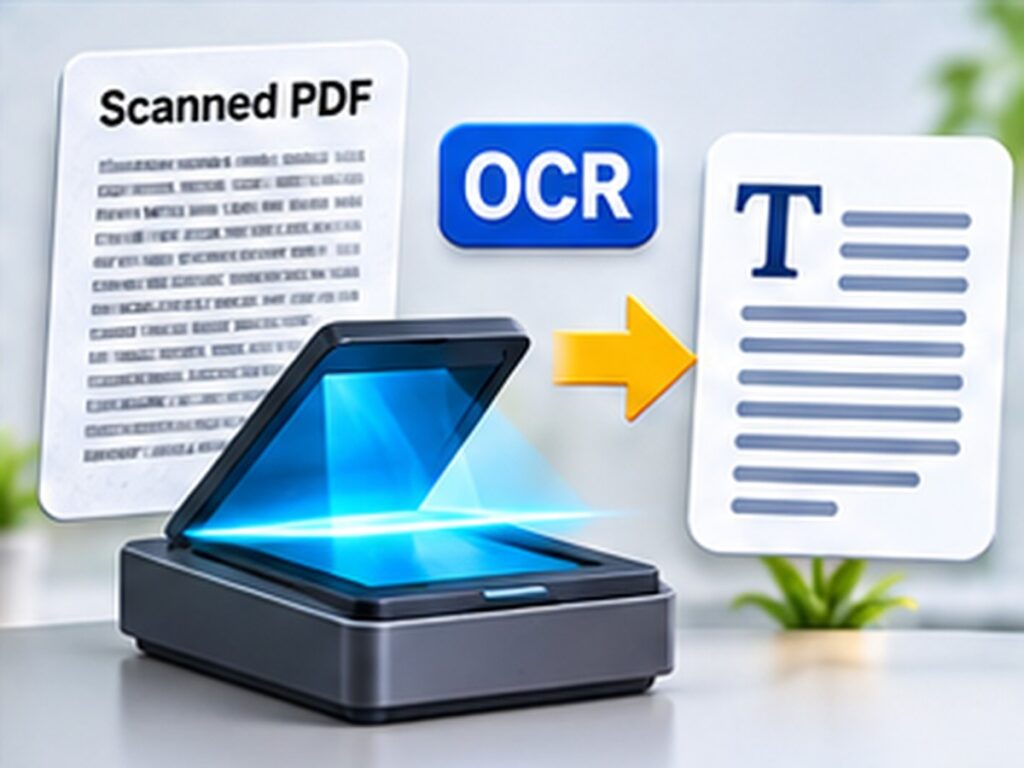
A scanned PDF may look like a document but actually contain photographs of pages. You cannot always search or select its words. Optical Character Recognition, usually called OCR, attempts to identify letters in an image and turn them into machine-readable text.
How OCR works
OCR software analyses page images, detects text regions and estimates the characters and words. Some systems also identify columns, tables and document layout. The result depends on image quality, language support, fonts and page structure.
Improve scan quality first
- Scan pages straight and avoid tilted images.
- Use even lighting and avoid shadows.
- Keep the text sharp and in focus.
- Choose a suitable resolution for small print.
- Remove blank pages and unnecessary borders where possible.
Check OCR output
OCR can confuse similar characters such as O and 0, I and 1, or punctuation marks. Tables, handwriting, faded pages and mixed languages are especially challenging. Always compare extracted text with the original scan, particularly names, amounts, dates and reference numbers.
OCR does not recreate the original perfectly
Recognised text may be stored as a hidden text layer over the page image. The PDF can look unchanged while becoming searchable. This does not guarantee that the document’s layout, reading order or accessibility structure is correct.
Frequently asked questions
Does every scanned PDF need OCR?
No. OCR is useful when you need to search, copy or process text. A scan intended only as a visual record may not require it.
Can OCR read handwriting?
Some specialised recognition systems can interpret handwriting, but accuracy varies considerably. Do not assume handwritten text has been captured correctly.
For important legal, financial or academic documents, manually verify the recognised text before using it.
Find simple browser-based utilities for everyday document and image tasks.
Explore all tools →