How to Reduce PDF File Size Without Making Documents Unreadable
Understand why PDFs become large and learn practical ways to compress them while protecting text clarity, page quality and important document features.
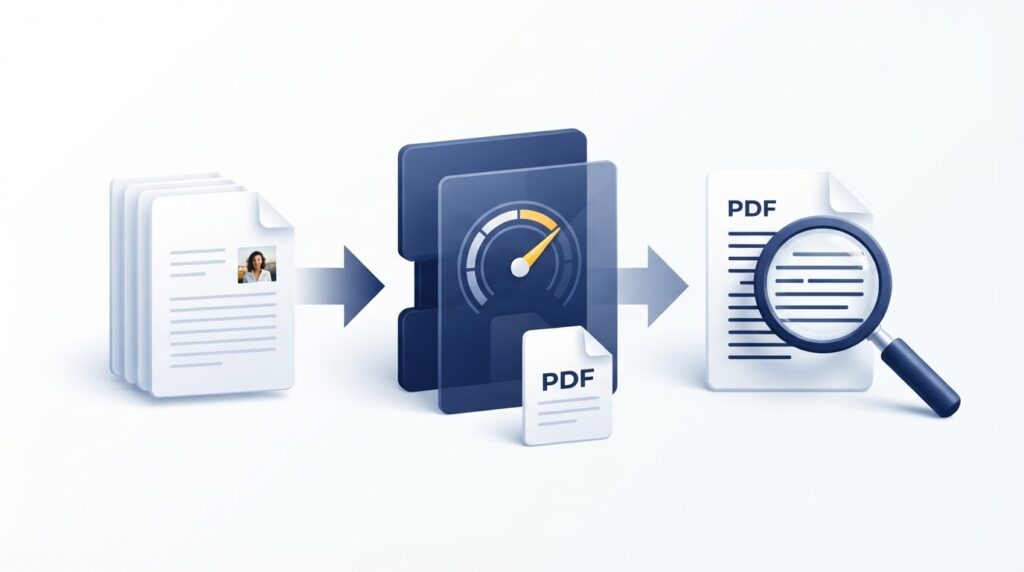
A PDF that looks small on screen can still be too large to email or upload. This often happens when the document contains high-resolution photographs, scanned pages or repeated images. A file-size limit on a school portal, job application, government form or email attachment can turn a simple task into a frustrating one.
Reducing a PDF’s size is usually called PDF compression or optimisation. The aim is not simply to make the number smaller. A useful compressed document must remain readable, complete and suitable for its intended purpose. This guide explains why PDFs become large, which methods can help, what quality trade-offs to expect and how to check the result before sharing it.
Why is a PDF file so large?
PDFs can contain many kinds of information. A text-based document created from a word processor may be relatively small because letters and layout instructions take less space than photographs. A scanned document, on the other hand, may store every page as a large image. High-resolution colour scans can create especially large files.
Other factors include embedded fonts, high-quality images, vector artwork, transparency, annotations, attachments and duplicated resources. A document assembled from several source files may contain images that are larger than their visible size on the page. Some PDFs also contain data used by forms or other interactive features. Compression results depend on the structure of the file, not only on its page count.
Understand the main compression methods
Image downsampling
Downsampling reduces the pixel dimensions of images inside a PDF. This can make a noticeable difference when the source images are much larger than needed for normal viewing or printing. However, if a page contains small text or fine line drawings, reducing resolution too far can make the content blurry. A sensible setting depends on how the document will be used.
Image recompression
Some PDF optimisers re-encode images with a more efficient compression setting. JPEG compression can reduce photographic content substantially, but it is lossy. Repeated lossy compression may introduce visible artefacts around text and edges. Avoid aggressive settings for documents containing small print, signatures or detailed diagrams.
Removing unnecessary data
Some tools can remove unused objects, duplicate resources, metadata or other data that is not needed for the document’s intended use. The amount of space saved varies. Removing elements may also remove information that matters, so understand the options before applying them to important records.
Rasterising pages
Another approach is to render each page as an image and build a new PDF from those images. This can reduce size in some cases, but it changes the document. Selectable text, search, links, form fields, vector graphics, accessibility structure and interactive elements may not survive. This method should not be treated as a universal or lossless compression technique.
Choose the right method for your document
For a text-heavy report with a few pictures, use a method that preserves text and optimises embedded images rather than converting every page into a picture. For a scanned set of photographs, image compression may be more relevant. For a signed or official form, be cautious: flattening or rasterising can remove interactive fields and other useful properties. If the document must remain searchable, preserve its text layer or use OCR after scanning.
Before compression, consider the recipient’s requirements. A portal may set a maximum file size, but it may also require a minimum readability standard, a particular page size or a PDF that can be searched. Meeting the file-size limit is not enough if the resulting document is difficult to read or no longer meets the submission rules.
Step-by-step workflow
- Keep an original copy. Save the uncompressed PDF separately. Do not overwrite the only copy of an important document.
- Check the file size and page count. Note the current size and open the document to confirm that all pages are present.
- Identify what makes it large. If it contains many photographs or scanned pages, images are likely to contribute substantially. If it is mainly text, compression may produce only a small reduction.
- Choose a suitable compression level. Start with a balanced or moderate setting. Use stronger compression only if necessary and only when the document can tolerate the quality loss.
- Process the file and wait for completion. Avoid closing the tab while a browser-based tool is working.
- Compare the output. Check the new file size and open the compressed PDF. Inspect small text, diagrams, photographs, signatures and page edges.
- Test the important functions. If the original contained links, bookmarks, forms, selectable text or accessibility features, confirm whether they remain available.
- Submit only after review. Use the compressed file only if it remains readable and satisfies the recipient’s rules.
You can try the Mehena Tools Compress PDF page for browser-based compression. Its page explains the available quality choices and notes an important limitation: its image-based approach can affect selectable text, accessibility structure, vector graphics and interactive features. Keep your original file and inspect the output before relying on it.
How to check whether compression damaged quality
Do not judge the result only by looking at a thumbnail. Open the original and compressed versions at the same zoom level. Inspect the smallest text on each page, not just the headings. Look at thin lines, mathematical symbols, tables, stamps and signatures. If the PDF is intended for printing, review it at a realistic print scale or print a sample page when possible.
Try selecting a sentence and searching for a word. If that worked in the original but no longer works in the compressed version, the compression method may have converted the page to an image. This may be acceptable for a simple visual copy, but it is not acceptable when searchable text is required. Also test any form fields, links or bookmarks that are important to the recipient.
When compression makes a PDF larger
Compression is not guaranteed to reduce every PDF. A file that already contains optimised images may have little room for improvement. If a tool rasterises text pages at a high resolution and embeds the resulting images, the new PDF can be larger than the original. The output may also become less useful even if its size decreases.
If the compressed file is larger, return to the original and try a different method or setting. Avoid repeatedly compressing the already compressed output. Each conversion can add processing changes without producing a meaningful benefit. If the file is still too large, consider splitting it into separate documents if the receiving service allows that, or reducing the size of the original scans before creating the PDF.
Privacy when using online PDF compressors
PDFs can contain personal details, signatures, addresses, financial records or business information. Before uploading a document to a website, check whether the service sends the file to a server, how long it retains it and whether it explains its privacy practices. Do not assume that every free online compressor processes files locally.
Mehena Tools’ Compress PDF page describes browser-based processing and explains that the file is not uploaded to its servers by that tool. The page also describes the rasterisation trade-off. For sensitive files, use a device and browser you trust, avoid public computers and retain the original. Browser-based processing does not remove every possible privacy risk associated with your device or browser environment.
Common mistakes to avoid
- Choosing the strongest setting immediately: This may make small text and fine details difficult to read. Start with a balanced setting.
- Deleting the original: Always keep an untouched copy until the output has been checked and accepted.
- Ignoring searchable text: A smaller image-only PDF may no longer support text selection or search.
- Assuming a smaller file is always better: Readability and document functionality are more important than the smallest possible number.
- Compressing the same file repeatedly: Repeated processing can reduce quality without meaningful size savings.
- Forgetting the recipient’s requirements: Check file-size, format, page and quality requirements before submitting.
Frequently asked questions
Will PDF compression reduce quality?
It can. Some methods reduce image resolution or use lossy compression. The effect depends on the source PDF and the settings selected.
Can I compress a PDF without losing text selection?
Some optimisers preserve the text layer while compressing images. Rasterising pages generally turns the page content into images, so text may no longer be selectable.
Why did my PDF become larger after compression?
The original may already have been optimised, or the new method may have replaced compact text and vector elements with large images. Try another method or keep the original.
Is it safe to use an online PDF compressor?
It depends on the service and the document. Review its privacy information and processing method. For confidential files, use a trusted local application or a clearly described browser-based tool.
Final advice
The best PDF compression workflow balances file size with readability and functionality. Start with a copy, choose a moderate method, compare the output and check the features that matter. A PDF that is slightly larger but clear, searchable and complete is often more useful than a tiny file that has lost important information.
About this guide
This guide is for general educational purposes. Compression behaviour varies by document and software. For official submissions, legal records or archival documents, follow the relevant organisation’s requirements and retain an unmodified original.
Find simple browser-based utilities for everyday document and image tasks.
Explore all tools →